
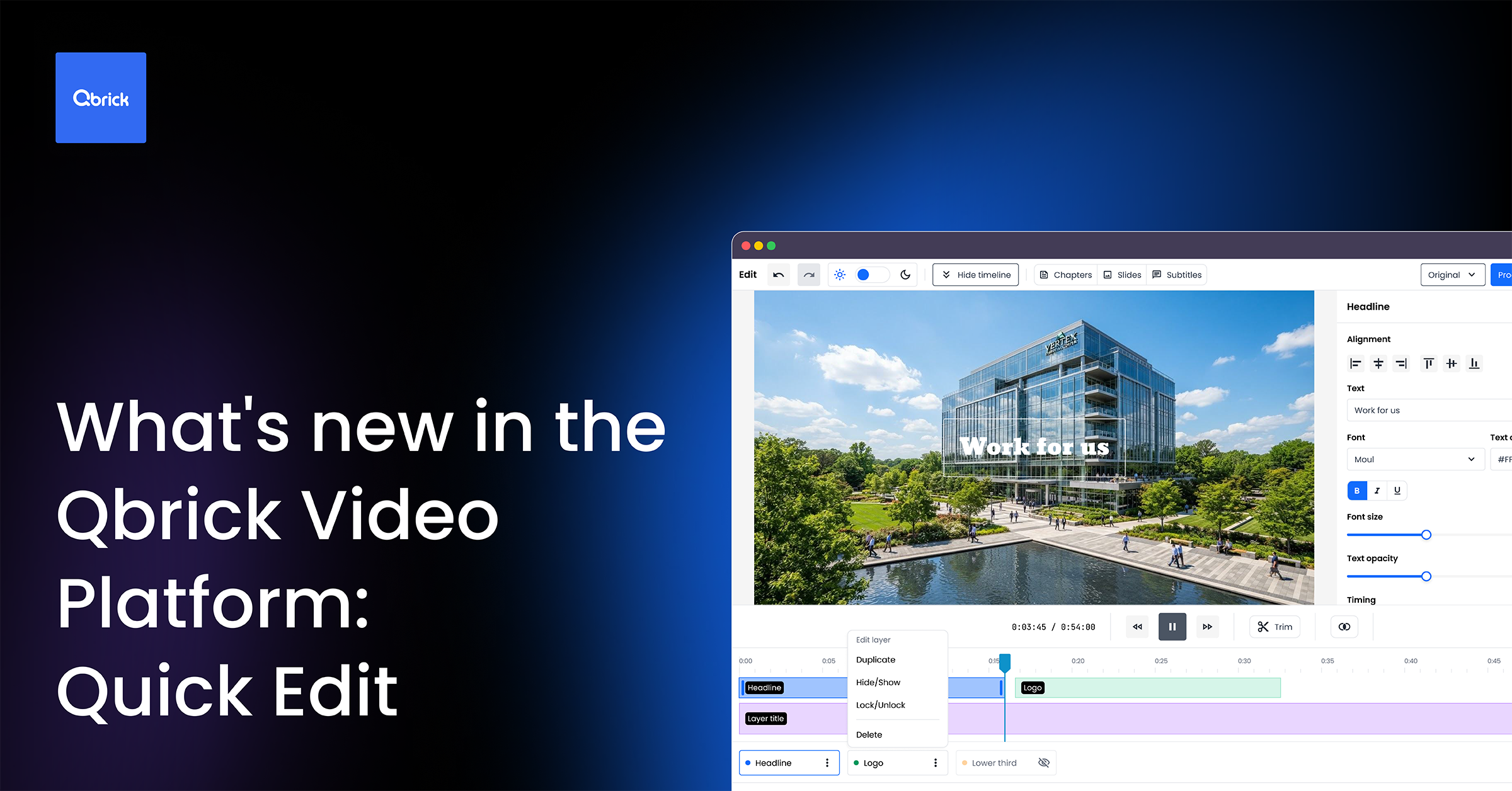
Introducing Quick Edit
This release is about giving you a faster way to finish a video without ever leaving Qbrick. Quick Edit is a new built-in editor for trimming clips, adding graphics, and reformatting for different channels, all without a separate app or license. Here’s what it can do.
Trim and stitch clips, right where your video already lives
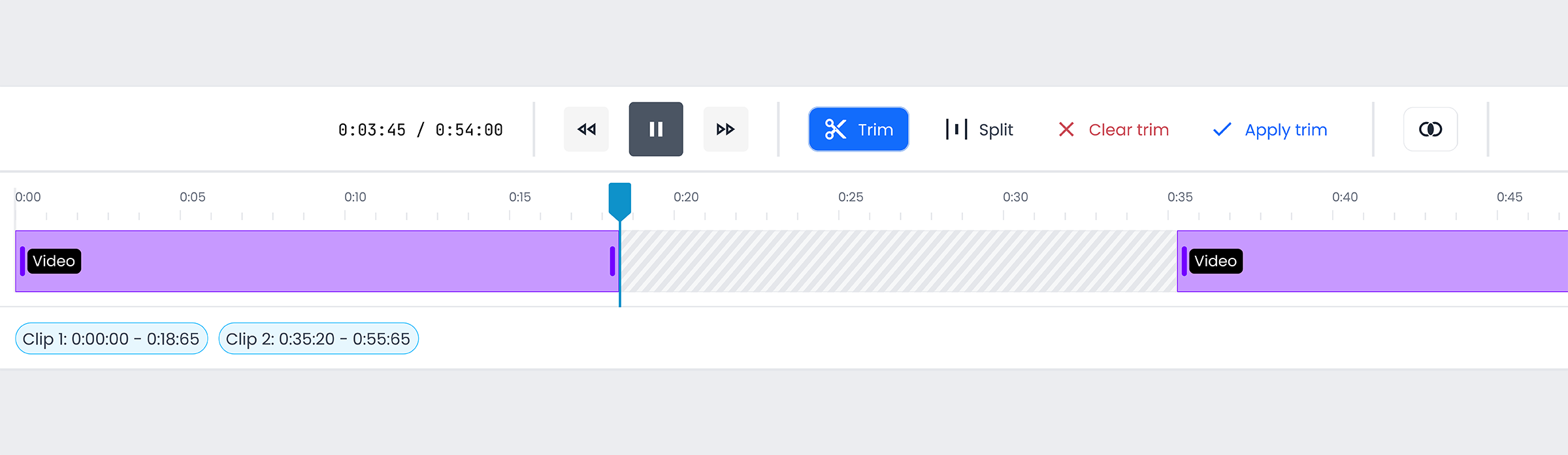
Quick Edit lets you set multiple keep-ranges with draggable handles, split a range at the playhead, or clear everything and start over. Stitch several clips into one by dragging them into the order you want.
Chapters, slides, and captions update automatically to match your edit, so nothing falls out of sync once you’re done.
Add text, images, and video, exactly where you want them
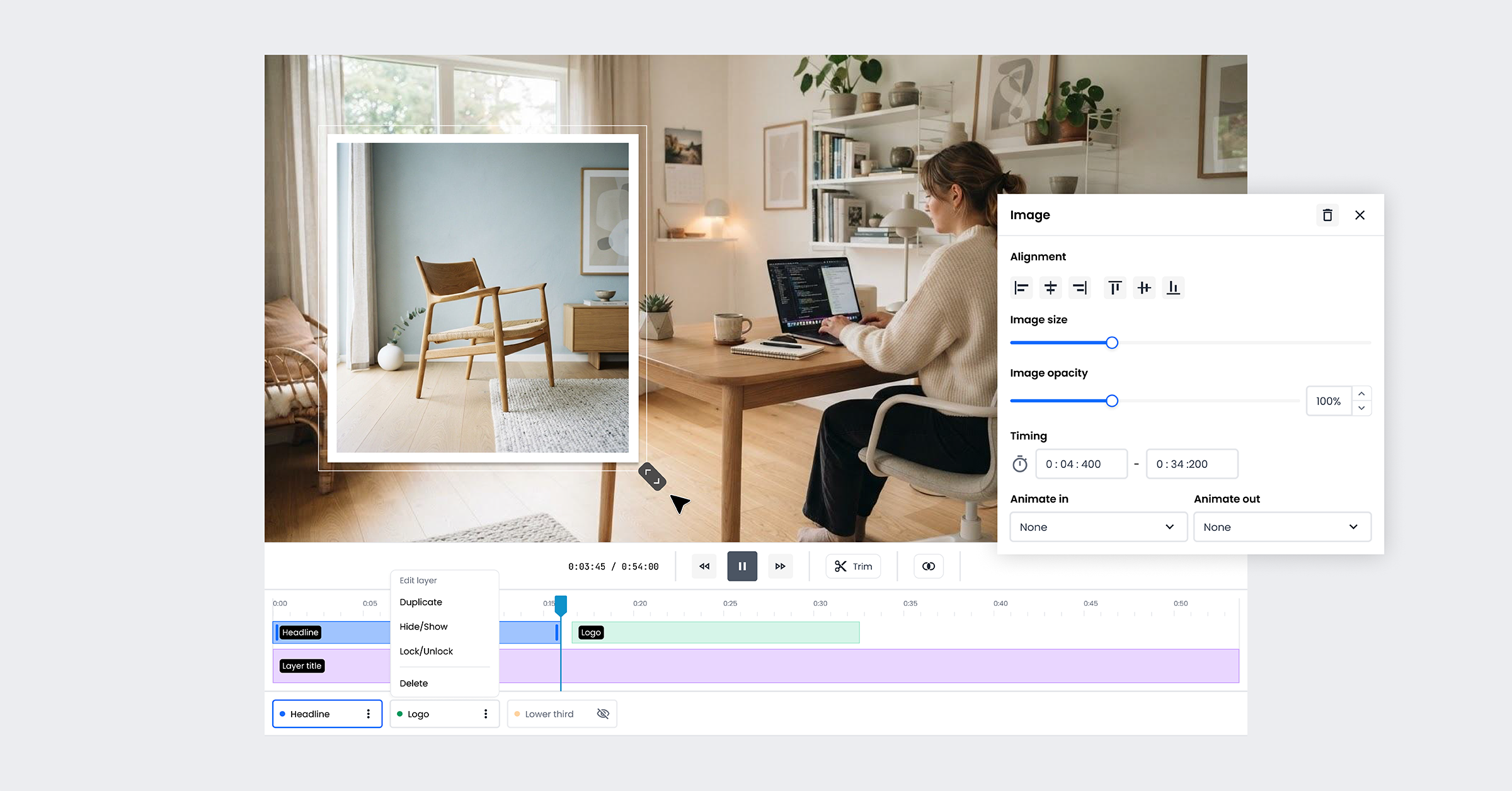
Drop in a headline, a logo, or a small video clip, then move, resize, and align it directly on the video preview. Seven text presets cover most needs out of the box, from a simple bar to a fully custom text block, and you can fine-tune color, font, size, and timing whenever you need more control.
You can also add a picture-in-picture clip with its own volume and loop settings, or drop in an image clipped to a circle, rounded corners, or any shape that fits your layout.
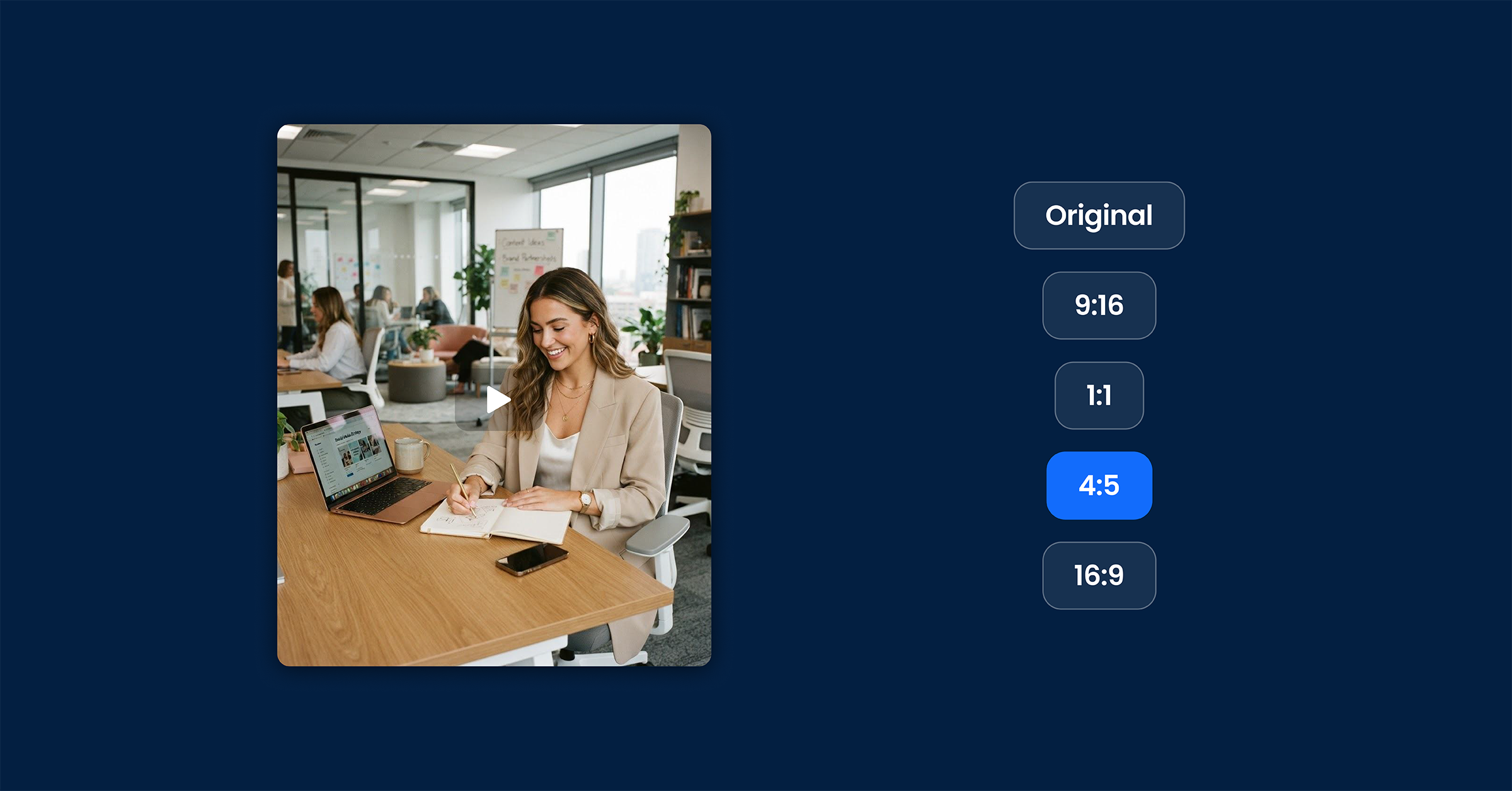
One edit, every format
Built to embed, wherever you need it
Quick Edit runs inside the Qbrick platform today, and it’s also built to embed into your own product, as a web component or through a JS API. If you’re building on top of Qbrick, you don’t need to build a video editor from scratch to go with it.
Feature list
Loading a video
- Open a QVP media by id — pulls the playable URL, duration, asset id, chapters, slides, other sequences and the asset’s image pool (mediaLoad.ts)
- Open a plain video URL, or pick a local file (drag-in / file picker)
- Picks the highest-bitrate MP4 rendition for both preview and render (height → bitrate → size)
- Host can pin a playback URL that differs from the one exported
Trim & stitch
- Multiple keep-ranges (trims) with draggable in/out handles
- Split the range at the playhead, clear all, re-enter trim editing
- Trimmed view: the whole editor (timeline, times, overlay timings, chapter/slide times) works in post-trim time and maps back on commit
- Append video — several clips stitched in order; reorder by drag, remove a clip
- Trims and stitching are reflected in chapter, slide and foreign-sequence timings on export
Overlays
- Three kinds: text, image, video (picture-in-picture)
- 7 text presets: Text Block (the advanced one), Simple Bar, Minimal Left, Accent Box, Big Statement, Subtitle, Neon Sign
- Drag to move, edge/corner resize (shift = aspect-locked), 9-way align to the frame
- Per-overlay in/out timing, opacity, colour, font, font size, B/I/U
- Clip shapes on image and video overlays: none / rounded (radius %) / circle / ellipse / square
- Video overlays: volume 0–100% (0 = muted), audible in-browser preview, loop, clip attached as a multipart part at export
- Right-click menu: align, colour, opacity, font, anim in/out, edit properties, delete
- Layer panel and z-order; selection synced between preview, timeline and panel
Text block (advanced text)
- Line wrapping with a growing box, horizontal + vertical alignment inside the box
- Inline runs — per-word/selection bold, italic, underline, colour, relative size
- 23 fonts (sans / serif / display / mono), font size, line height, letter spacing, uppercase, padding
- Background box (colour, opacity, corner radius), outline (colour, width), drop shadow (dx, dy, blur, colour)
- Rendered as SVG so browser preview and server render agree; a build-time librsvg probe guards it
Animation
- Dedicated Animation tab with a visual gallery — hover a tile to preview without applying
- Three tracks: in, out, loop, each with its own duration
- 17 animations across groups: Fade, Slide, Grow, Typewriter, Fade by unit, Flicker, Drop, Rise, Slide by unit, Spin, Tumble, Pop, Bounce, Pulse, Drift, Wobble, Throb
- Text animations run per character/word; block animations move the whole overlay
- Browser preview drives the same SMIL the encoder renders frame-by-frame
Output format
- Original / 9:16 vertical / 1:1 square / 4:5 portrait / 16:9 landscape, selector in the toolbar
- Three fit modes: Fit (padded bands), Crop (fills, edges cut), Blur (blurred backdrop) — previewed live
- Canvas capped at the source’s shorter edge so nothing is upscaled; overlay coordinates are canvas-relative
Timeline metadata
- Chapters: multiple tracks, add / rename / remove track, add / edit / delete markers, seek on click
- Slides: tracks of image spans picked from the media’s image pool, add / retime / remove, thumbnails
- Other sequences (title / video / cover / custom / livevideo): retiming only, everything else preserved server-side
- Metadata-only changes save straight to the platform with no encode
Timeline & playback
- Clip track, chapter lane, slide lane, overlay chips, time markers, drag-to-scrub playhead
- Layered mode for overlapping overlay chips
- Transport bar: play/pause, rewind, fast-forward,
h:mm:ss / h:mm:ss, trim controls, add-overlay - Collapse everything below the preview to a 32px strip (scrub + play + time) for small screens
- Keyboard: space play/pause, ←/→ frame step, ⌘/Ctrl+Z undo, ⌘⇧Z / Ctrl+Y redo
Export & jobs
- Process changes (encode) vs Save (metadata only) — chosen automatically from what changed
- Overwrite this media or Save as new media (split-button menu)
- Upload progress, multipart or by-URI submission, flow selection
- Busy-media detection — refuses to submit on top of a running job; processing overlay locks the editor and reloads when done
- Background jobs panel for save-as-new exports writing to other medias
- Errors surfaced in the toolbar;
onComplete,onJobFinished,onErrorevents to the host
Session & shell
- Undo/redo over the document only
- Draft autosave to the encoder with a restore prompt on reopen; versioned so an older editor refuses an incompatible draft
- Light/dark theme, host-settable
- Embeds as a web component (
<qbrick-editor>) or via a JS API; attributes and properties both supported
Get Quick Edit
Quick Edit is available now for all Qbrick customers. Learn more by visiting the product page. Log in to trim your first clip, or book a demo if you’d like a walkthrough first.